All gift cards are automatically sent to the Meal Train page recipient email address.
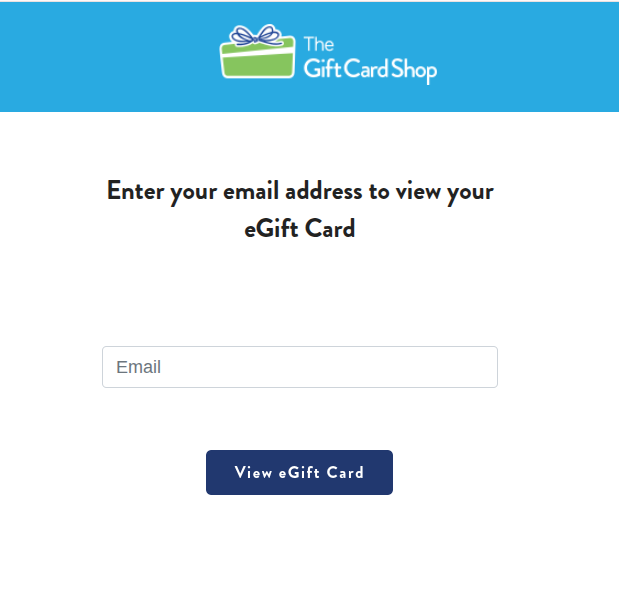
You will be asked to enter the recipient email address to view most eGift cards:
Enter the email address listed as the recipient at the time of purchase. If you do not know which email address was used as the recipient, you can check the Manage Gift Cards page. To do so, sign in as the recipient or organizer. Click Edit Page, then Manage Gift Cards. Each donor will have an entry, with the recipient email listed in that entry.
Can't find your gift card? Learn more here.
Zift/Zillions Gift Card:
Need help redeeming your Zift/Zillions gift card? Please visit the Zift/Zillions FAQ or watch the Zift/Zillions how-to video
DoorDash Gift Card:
1) Click the link "View Your Gift Card" from within the email notifying you of your eGift. If you are not finding the email, try searching your email for a message from delivery@orders.thegiftcardshop.com

2) Enter the recipient email address to view the eGift card.
Don't know which email address was used as the recipient? Check the Manage Gift Cards page. To do so, sign in as the recipient or organizer. Click Edit Page, then Manage Gift Cards.
3) Copy the 16 digit pin and open the DoorDash App on your phone

4) Click on the profile icon at the top of the screen

5) Click on Manage Account and then Redeem gift card


6) Paste in the 16 digit pin number and click "Redeem to your account"

7) You will reach a confirmation page alerting you the funds have been added to your account. Gift card balance will be available in "gift credits" on account. You can then use these funds within the app for purchases.
